
Create social content around what your customers actually care about.
A social post works when the idea is worth showing, not because an app added captions to it. AI can help prepare hooks, scripts and creative variations, while a person still decides what is true, on brand and useful for the audience.
Start with one customer problem and an action your team can show. This guide walks through turning that action into a short video, reviewing the result, and testing whether an AI social content generator fits your editing and publishing process.
From a product problem to a creative idea
Choose a problem someone will recognize
Look for a moment when a customer has to stop, ask a question, or repeat a piece of work. Support notes, sales conversations, and product onboarding can help you find those moments. Write the problem in words a viewer would recognize. “I keep sending the same reminder by hand” gives a producer something more concrete to work with than “improve appointment operations.” Decide which viewer you are speaking to and what that person should understand after watching. A clip for someone booking a meeting may need a different scene from a clip for the person setting up the booking page.
Use the problem to narrow the scope. A short product demo can show one setting, one change in the interface, or one useful result. Put details that cannot be seen into the brief so the writer understands the context without trying to fit them all into the video. If the action needs multiple permissions, account types, or decisions to make sense, either choose a simpler moment or use a longer format. The creative idea should fit the evidence and the viewer’s attention.
Choose the screen action before writing the hook
Write down what the viewer will see at the beginning and what will change by the end. A screenshot can help plan the framing, but a visible action is often easier to understand in motion. If the product setting is small, crop to the area that matters and leave enough surrounding context to show where the action happens. Use a test account or approved footage so the clip does not expose a customer name, email address, or booking detail.
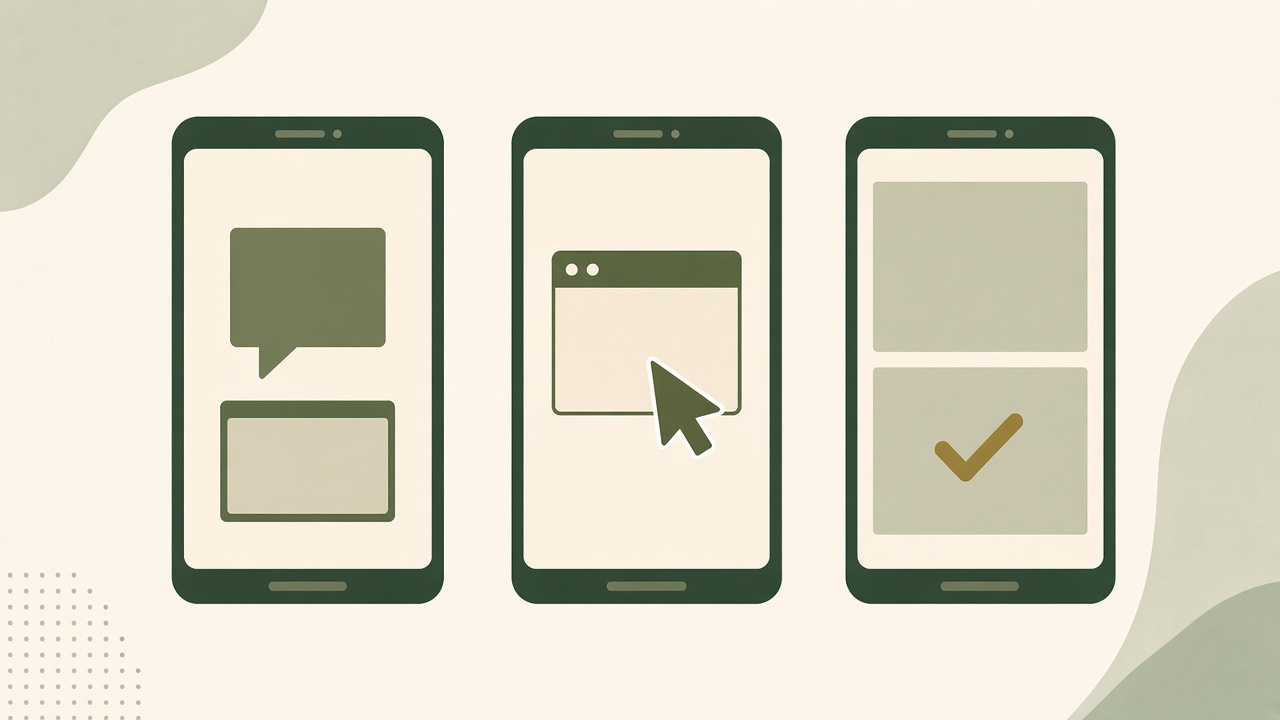
The example below uses a real documented feature: configuring reminder emails for eligible appointment schedules in Google Calendar. Check the Google Calendar appointment schedule guide for the setting and account requirements. The three hooks are editorial storyboard options for the same feature. Each uses a different opening while making the same limited claim about what the viewer can see.
Show where an appointment reminder is configured.
Illustrative storyboards based on the documented feature.
Problem hook
“Still writing each appointment reminder by hand?” Open on an illustrative draft reminder, then cut to the booking reminder setting. End with the timing option visible.
Walkthrough hook
“Here’s where appointment reminders live.” Begin on the schedule settings, move directly to booking confirmations and reminders, then show the setting being adjusted.
Before-and-after hook
“See what changes when a reminder is set.” Show the empty reminder state next to a configured reminder. Keep the focus on the setting rather than an outcome such as attendance.
See the actual workflow, review what is included and choose the next step that fits your business.
Choose the approach that matches what your viewer already knows. Someone unfamiliar with the feature may need the problem first. Someone looking for the control may prefer a direct walkthrough. A before-and-after makes sense when the difference is visible in one glance. Keep the footage and claim consistent while evaluating the opening, so you can tell which creative decision you changed.
What the workflow produces
A hook and a short script
A creative brief should contain the viewer, problem, screen action, approved claim, format, and next step. Write a few openings from those same facts. A useful hook tells people what they are about to see or names a problem they know. Read it aloud and watch the opening shot together. If the sentence sets up one idea while the picture shows another, rewrite the opening or choose footage that supports it. AI can suggest variations, and an editor can select one based on the audience and the material available.
Give each line in the script a job. The first can name the problem. The next can explain what the viewer sees when the action happens. The final line can suggest a practical next step, such as checking the setting or reading the fuller guide. Avoid including a claim just because the script has room for it. The words should help the viewer understand what happened on screen. If removing a line makes the demo easier to follow, remove it before adding more visuals.
A storyboard that tells the producer what to capture
List the scenes in order and describe what the viewer should notice in each one. For a short feature demo, the opening may show the starting state, the middle may show the action, and the end may show what changed. Add a note for any recording that needs a particular account or safe sample data. Decide which scenes can use existing footage and which need a new recording. A storyboard makes it possible to spot a missing shot before an editor spends time preparing a cut.
Time the cuts around the action rather than cutting everything to the same length. A viewer needs enough time to see a menu open and notice the selected option. Use a close view when the detail is small, and keep the shot steady while the viewer reads it. If the pace is too fast without the narration, simplify the sequence or keep the important frame on screen longer. Preserve the meaning of the product action through every crop and edit.
Captions and a format that fit the destination
Distinguish the written post from the captions attached to the video. The post can explain the context and point to a longer article. Video captions communicate spoken words and relevant sounds. The W3C guide to captions and subtitles explains what belongs in captions. Review the timing as well as the wording, especially when the speaker names a setting while the viewer is trying to find it. A caption should remain readable without covering the screen action it describes.
Choose the destination before final export. Check its accepted aspect ratio, duration, and upload process. If you plan to publish to YouTube, consult the official Shorts upload guide for the current format requirements. Preview the clip at the size a viewer will use. A useful demonstration can become hard to read after a crop even when the exported file plays correctly. Keep a version the team can edit if another channel needs a different framing or caption.
Approval and brand consistency
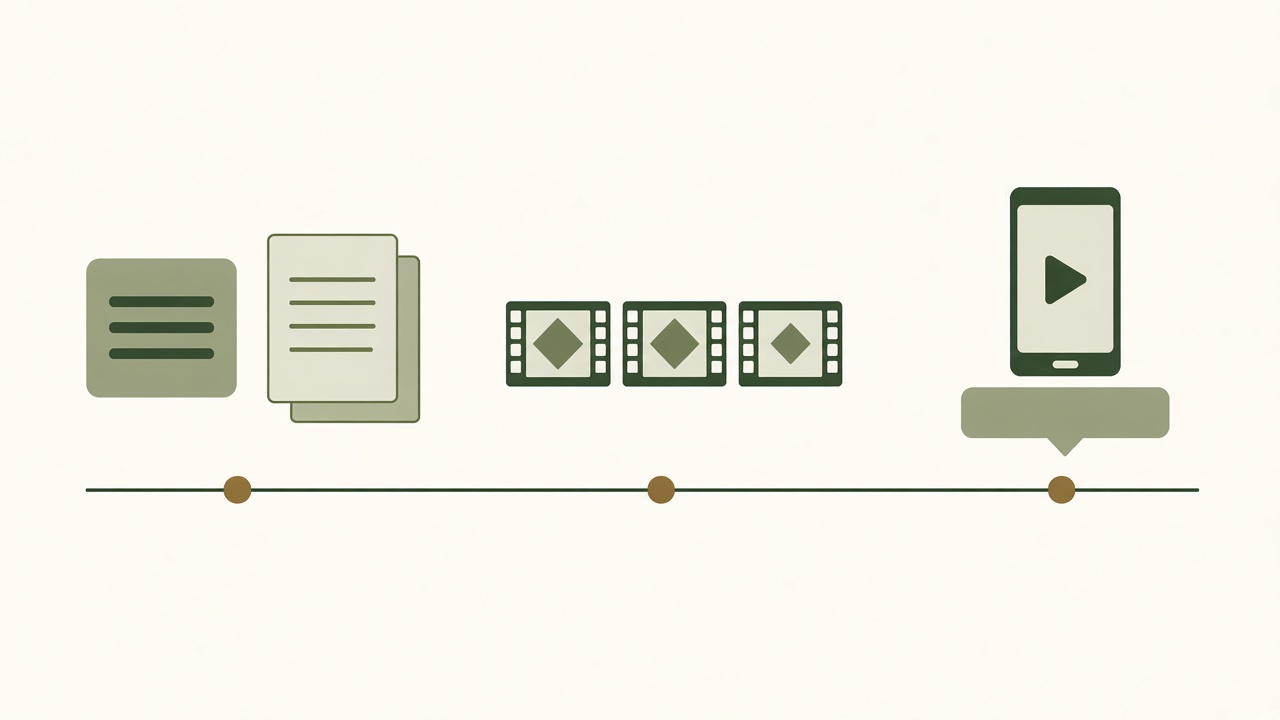
Check the product action and the claims together
Give the reviewer the actual script, footage, post text, and source material. Ask them to verify the exact claim made by each version. A clip may show a reminder setting accurately while its caption implies that reminders are available for every account. Those are separate checks. Include any limitations that affect whether the viewer can use the feature. If the condition cannot be explained clearly in the clip, put it in the caption or point to the documentation and keep the on-screen statement narrow.
Watch the approved edit all the way through before scheduling it. Look for transitions that make one step appear to cause a different result. Verify that the voiceover matches the screen and that a cropped view does not hide a required confirmation. Check the links, spellings, and product labels in the post. When a reviewer finds a problem, record what changed and which version is ready. Recheck any other asset that repeats the same claim before it goes live.

Keep the brand kit short enough to use
Give the producer a small set of current assets, preferred product names, a few examples of approved language, and the font and color choices that matter for readability. Include one example of phrasing you would change and explain why. A reviewer can then assess new hooks and captions against something concrete. Keep words that describe an interface consistent across the video, article, and help page. Use the terms a customer will actually see when they try the feature.
Brand consistency also depends on the tone of the claim. A measured explanation can be undermined by a caption that promises more than the product does. Compare the most prominent line with what the demo proves. If the clip shows that an option exists, say what the option does and where to find it. Claims about time saved, sales, or attendance need evidence of those outcomes. Edit the hook and the call to action together so they invite the viewer to take a step the asset can support.
Review the rights to the footage, sound, and images
Check who owns the screen recording, photographs, soundtrack, and any stock or generated material. Record where each asset came from and whether it can be used on the intended platform and account. The YouTube guidance on copyright claims and takedowns is useful when preparing a clip for that channel. Ask about rights before recording voiceovers or mixing music into the final edit, because replacing a track can require changes to timing and captions.
Keep the approval record beside the file the publisher will use. It can identify the reviewer, approved version, channels, and any conditions such as using only a particular crop. Give someone responsibility for corrections after publication. If the product changes or a rights issue comes up, that person should be able to find the affected posts and the approved source material quickly. A short record makes later changes easier without forcing the whole team to reconstruct the decision from messages.
Decide what happens when a review finds a problem
Give reviewers a way to describe whether a problem affects the facts, the footage, or the presentation. A wrong product claim needs the product owner to resolve it. A caption that arrives too early may only need an edit to the timing. A clip with material the team cannot use needs a replacement asset before it can go live. Sorting those decisions helps the producer act on the feedback without asking every reviewer to look at every change again.
Keep a list of the assets that use the same source. If the original recording contains a private detail, all the clips made from that recording should be checked. If the issue is specific to one platform’s crop, the editor may only need to correct that export. Record the difference and review the new version in the destination format. Once the correction is approved, replace the queued file and check that the calendar still points to the right version.
What to look for in a product
Give each option the same approved footage, source notes, and brief. Ask the producer to make a short clip that could be used on one of your actual channels. Then request an ordinary edit, such as replacing an opening line, cropping one shot, or correcting a caption. Compare how easily the team can check the output and recover an earlier version. A good demonstration tells you more about the work than a feature list, especially when your team needs to make changes after a review.
| Area | What to try |
|---|---|
| Editing control | Change the hook, replace a shot, and fix a caption without losing the approved product facts. |
| Export formats | Export the clip and inspect its size, crop, duration, audio, and captions on the intended device. |
| Channel support | Verify which formats go to each destination, who can authorize an account, and where a manual upload is needed. |
| Iteration | Make a second opening from the same brief and compare how quickly a reviewer can approve it. |
Look beyond the first generated version
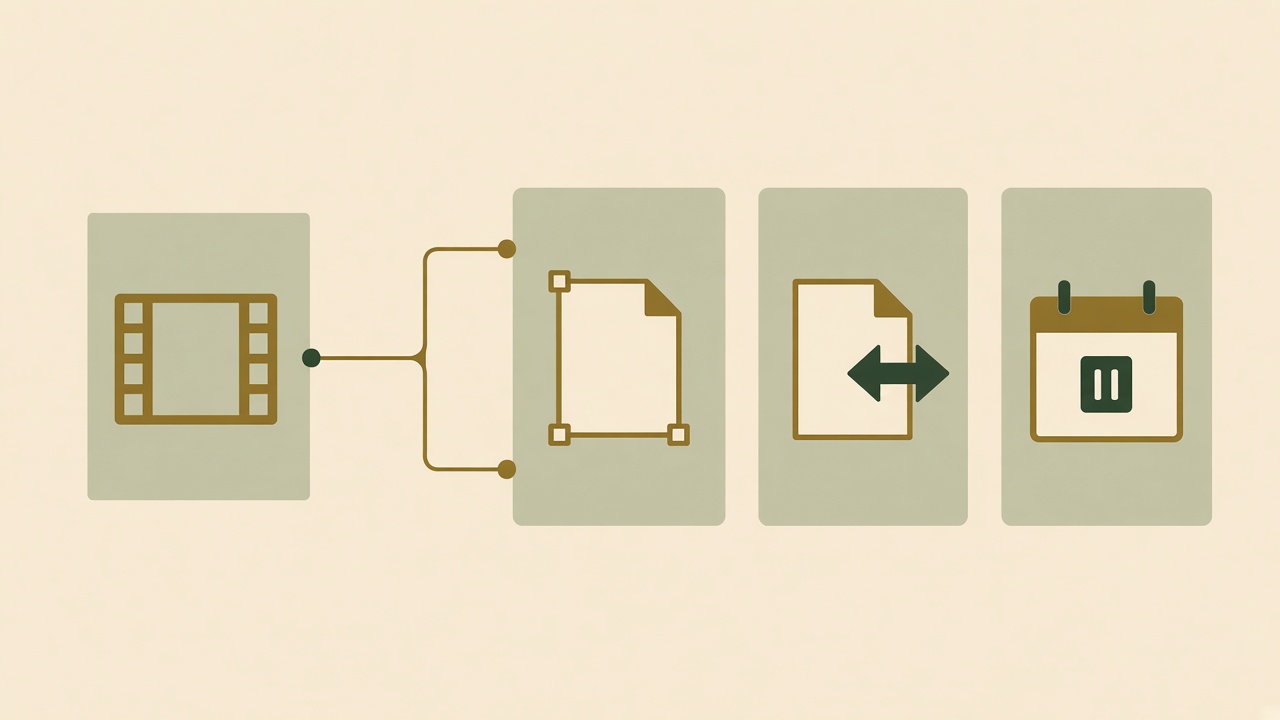
Check what you can edit after a clip is generated. Some teams need control over the script, order of scenes, and timing of the captions. Others mainly need a usable export they can finish in an existing editor. Ask whether the output is editable in the format you would keep, and what parts would have to be recreated if you change tools. A fast first pass is useful when the edits your team needs are also straightforward to make.
Check channel support in terms of the real job. Preparing a clip for a platform, exporting a file, and publishing through a connected account are distinct steps. Identify the one you need before comparing products. If a connected destination is important, verify the current requirements for your account, the formats it accepts, and what happens when the connection expires. Find out whether a person can catch a bad crop or wrong destination before publication. Try a preview or ask for a demonstration instead of assuming the connection will work as described for your exact setup.
Evaluate iteration and measure the right next step
Run one useful variation on the same footage. Change the opening to address a different viewer question while preserving the product facts. Track how long it takes to produce, review, and approve that variation. When you compare feedback, record what changed and what else might have affected the result, such as the channel or timing. A small trial is useful for identifying obvious creative or workflow problems, even when it cannot establish which hook will always perform better.
Use the measurements the destination provides. For example, LinkedIn’s post analytics guide explains the difference between impressions and members reached. If the goal is visits to a guide, Google Analytics’ campaign URL guide explains how to distinguish visits referred by specific links. Decide before publishing what action would matter to your team. Compare audience questions and the work needed to produce the asset alongside reach figures.
Keep the evaluation grounded in the schedule you want to maintain. A team producing a few product updates may be comfortable exporting to an editor. A team preparing several assets every week may need a clearer queue and a way to review changes quickly. Ask the people doing the work which steps remain manual and whether they have the time and permissions to handle them. The right choice should make an ordinary production week easier to complete at the standard you need.
Put the trial on a real content calendar
Pick a week with a normal workload. Put the draft date, footage owner, review deadline, and destination in the calendar. Add the date when you will look at feedback and decide whether to reuse the topic. Leave enough room for a correction and one final preview. If the plan only works when every draft is approved on the first pass, reduce the number of assets or narrow the creative scope before committing to that schedule.
Run the trial with the people who will use the workflow after purchase. Watch how the producer requests material and how the reviewer sends a decision back. If the same information has to be copied into several places, decide which record should be the source. If the reviewer cannot see the exact file that is queued for publishing, make that handoff part of the next test. A decision about the workflow should include the people who have to use it under ordinary deadlines.
End the trial with a short comparison of what shipped, what took another round, and what could be reused. A video that needed a new screen recording may expose a gap in your footage library. A video that stalled because nobody owned the caption may expose a handoff problem. Use those findings to decide which part of the work to change before evaluating another tool or increasing the number of posts.
Where Vlozy fits
Give the social branch one concrete job
Vlozy is the social creative product in the Growth Duo offer. Evaluate it with a feature you can show accurately and an audience that would benefit from seeing it. Bring a current product explanation, approved footage or screenshots, and a description of the platform format you need. Ask to see a current example that matches those inputs before making a buying decision. The storyboards above illustrate how to brief a clip and can be used to prepare that evaluation.
Check the format and editing controls you need with the current product and plan. A useful demo should show how the input turns into an asset, what you can change, and what happens when it is ready for your chosen destination. Keep a record of which steps the product demonstrates and which still need your team’s attention. Confirm what can be exported and what the destination accepts before building a schedule around it. Use the Growth Duo offer for the bundle’s current scope and commercial terms.

Use search-led topics to find things worth showing
Start with a question your website is already trying to answer. The article can cover the background, instructions, and exceptions. The social clip can show the part of the answer that becomes clearer when someone sees it. In the scheduling example, the article may explain which account supports reminders and how to configure them. The clip may focus on the setting itself. The two assets use the same verified facts and can still serve audiences at different points in their decision.
Give the article and video their own review records. When the product documentation changes, check whether both need edits. A new interface label may require a fresh screenshot or clip, while a revised account condition may only need a caption or article update. Use a shared brief to keep the evidence in one place. Assign each owner responsibility for the version that appears in their channel and for confirming any change that affects the other format.
Use the first topic to decide whether both branches fit
Choose one topic and follow it through a week of ordinary work. Ask the article editor whether the question has enough evidence for a useful answer, and ask the video producer whether there is a visible action worth recording. Give both the same product facts and review deadline. Record what each person still had to gather separately. This makes it easier to tell whether the team benefits from sharing a topic and whether it needs both tools at its usual volume.
Review the live results for feedback you can use in the next brief. Someone may ask how to find a menu the clip passed too quickly, or whether a setting works for their account. That question can guide a caption edit, an updated article section, or a different opening next week. Compare the work required with what the assets helped people understand. A repeatable process should leave the team with a usable record of the brief, footage, review, and published version.
FAQ and next action
What is AI social media content creation?
It is using AI to assist parts of the social creative process, such as preparing ideas, hooks, scripts, captions, or video variations. The team still chooses the idea, verifies what the asset says, and reviews the result for the destination.
Can AI create short-form video content for a business?
Some tools can help assemble short videos from material a business provides. Check the tool’s current inputs, editing controls, and outputs. A product demo should still show the actual action clearly and use footage the team can publish.
What are the limits of social content generators?
Generated material can misread product facts, use the wrong framing, or produce a script that asks for footage you do not have. Check the result against the brief and the source material before treating it as ready.
How can I keep videos aligned with my brand?
Give the producer current approved assets, product terms, and examples of the way you explain the product. Check the caption, voiceover, and on-screen wording together so they make the same accurate claim.
How do I review captions before publishing?
Play the clip with and without sound. Check names, timing, and whether the captions communicate the important audio. Preview the final framing to make sure text does not cover the action.
Which channels need different creative formats?
Check each destination’s current format requirements and preview behavior. The same subject can work in different places, but framing, duration, and the way captions appear may need separate edits.
Is AI useful for product demonstrations?
It can help prepare a hook or storyboard and suggest variations. Start with an action you can actually show, record or supply accurate footage, and check whether the final edit makes that action easier to understand.
What do I need to give an AI content creator?
Provide the audience, problem, verified facts, footage or images you can use, preferred wording, and destination. Include an example of an approved claim and note anything the producer should leave out.
How can a small team maintain a social schedule?
Choose a manageable set of topics, assign a producer and reviewer, and track approved versions in one calendar. Review questions and comments after publishing so the next topic comes from something the audience actually needs.
Can I use my own product screenshots in AI-generated social creative?
Check that your tool supports the image format and that you have permission to use the screenshot. Remove private information, confirm that the UI is current, and inspect the output for any changes that could misrepresent the product.
Compare the workflow with the feature demo your team needs to produce next.